

Stop Using the Wrong VPN: A Complete Guide to WireGuard, Tailscale & ZeroTier
March 25, 2026
If you are looking to take full control of your AI and automation workflows, learning how to install OpenCLaw from scratch is an absolute game-changer. While there are many ways to deploy modern AI tools, setting up your own environment gives you unparalleled insight into how the system operates under the hood.
OpenCLaw is an incredibly powerful platform that helps streamline tasks, manage data, and run advanced processes. Whether you want to manage operations directly from the terminal or prefer a sleek web browser interface, OpenCLaw adapts to your workflow.
Once installed, it becomes even more helpful by allowing you to connect and automate communications through platforms like Telegram, WhatsApp, and more.
In this guide, we will walk through a complete, manual installation of OpenCLaw on an Ubuntu server.
When it comes to hosting, you have total freedom. You do not need to force yourself into a specific ecosystem like Azure. You can install OpenCLaw absolutely anywhere:
Today, many hosting providers offer convenient “one-click” deployment options for tools like this. For example, you can easily use Hostinger’s one-click OpenCLaw deployment if you want a hands-off setup.
However, as a tech enthusiast and system administrator, using one-click solutions often means missing out on the core mechanics. By deploying and setting up the tool directly from the command line, you understand exactly what is happening on your server, how the data is handled, and how to troubleshoot it effectively.
Let’s dive into the core setup.
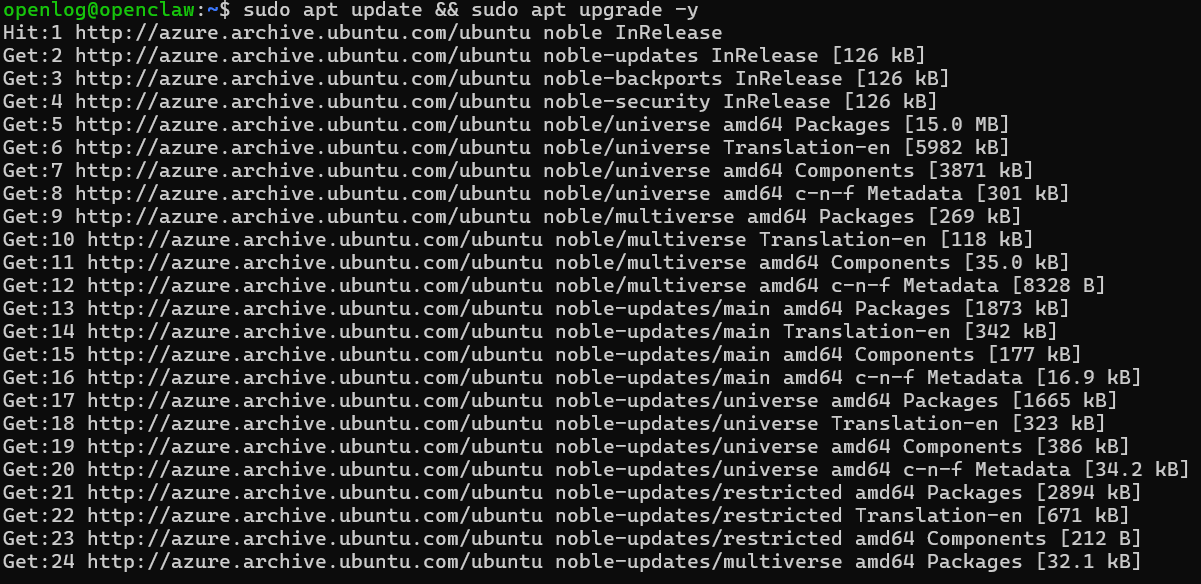
For this tutorial, we are using a fresh Ubuntu Server instance. Before installing any new software, it is always a best practice in system administration to ensure your server packages are up to date.
Connect to your server via SSH and run the standard update commands:
sudo apt update && sudo apt upgrade -y
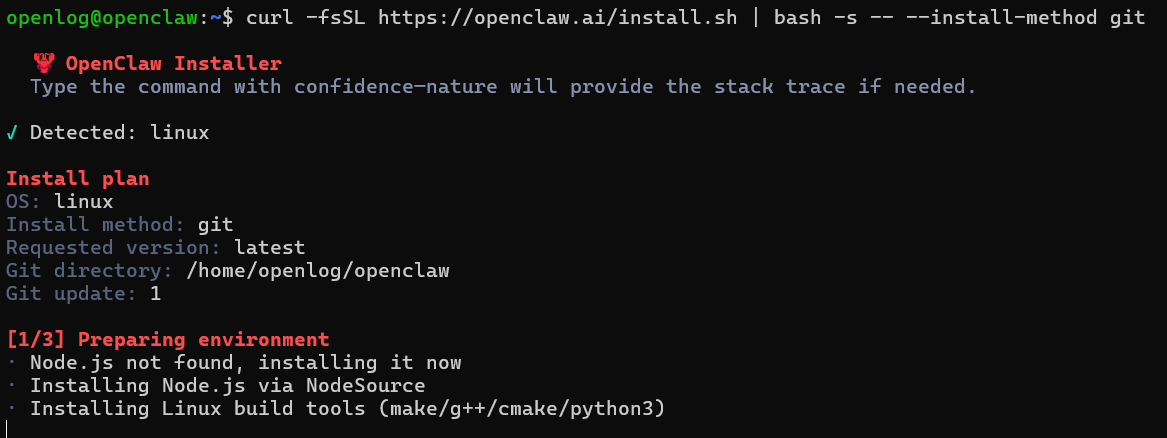
Once your server is updated and ready, we can pull the official installation script. The developers at OpenCLaw have provided a straightforward shell script to handle the heavy lifting while still giving us visibility into the process.
We will use the curl command to download the script and execute it via bash. We are also passing the –install-method git flag to ensure the installation pulls directly from the source repository, which is ideal for enthusiasts who want to track updates or modify the core files later.
Run the following command in your terminal:
curl -fsSL https://openclaw.ai/install.sh | bash -s -- --install-method git
Once you press Enter, the script will automatically begin fetching the necessary dependencies, setting up the required directories, and cloning the OpenCLaw repository onto your server. Depending on your server’s network speed and hardware capabilities, this process will take a few minutes.
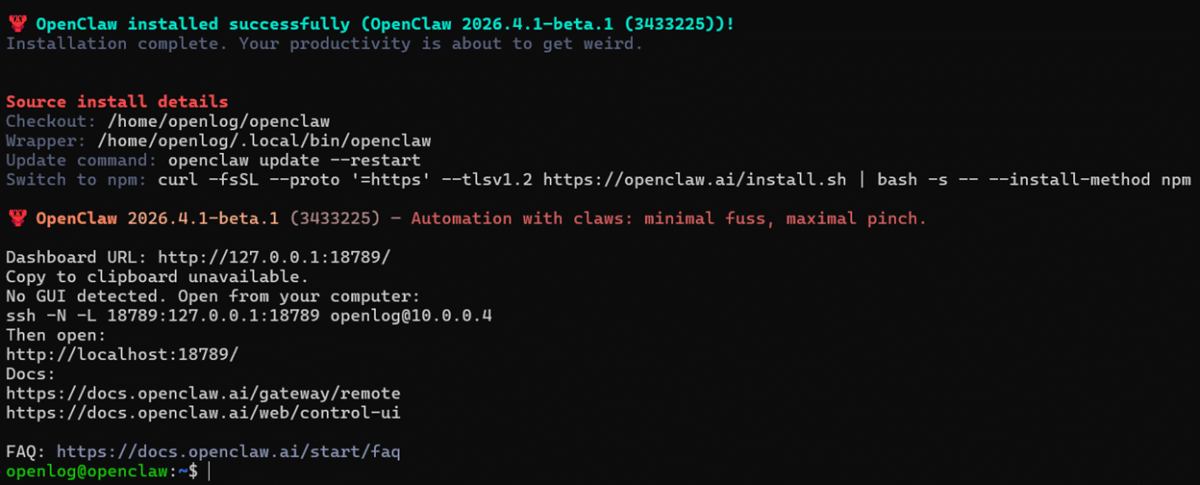
Wait for the terminal to display the final success message confirming that OpenCLaw has been successfully installed.
Congratulations! You have successfully installed OpenCLaw from the core.
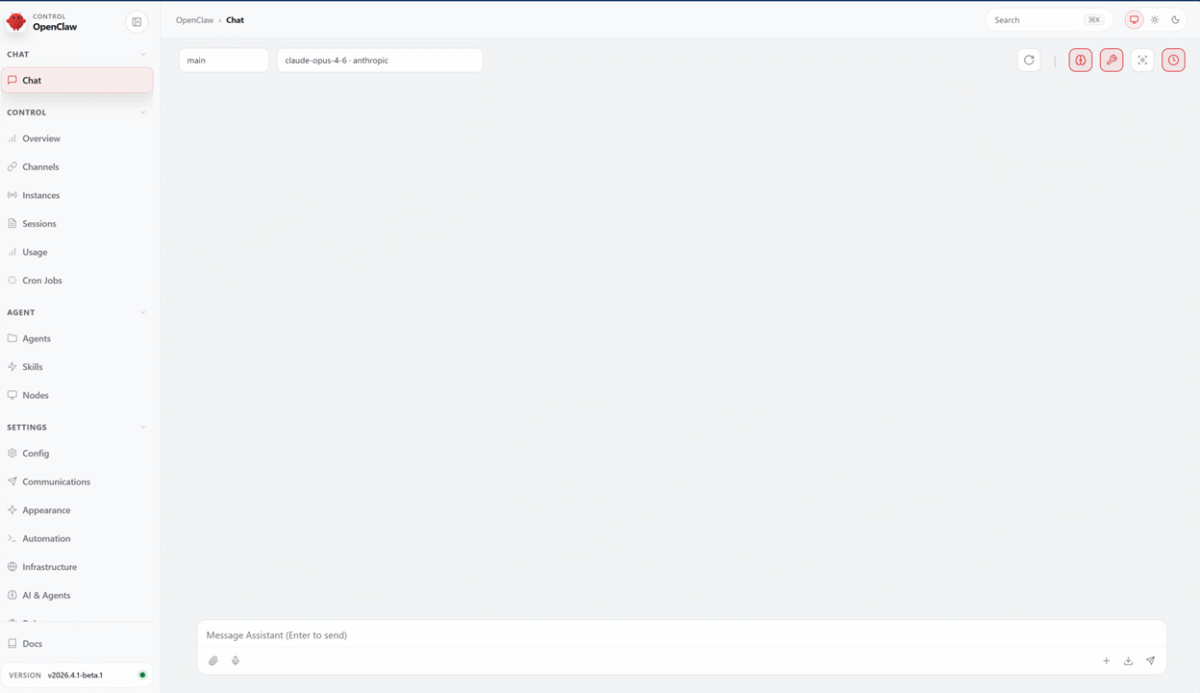
Because you installed it manually, you have the flexibility to interact with OpenCLaw in two distinct ways:
Now that your instance is live, the real fun begins. One of the primary ways this tool is helpful is its ability to act as a centralized brain for your operations. You can navigate to the integrations tab to connect external communication channels.
By linking your new OpenCLaw server to Telegram or WhatsApp, you can receive real-time notifications about your server’s status, send automated replies to queries, or trigger complex server commands right from your smartphone chat app.
If you found this OpenCLaw setup guide helpful, be sure to check out our other tutorials on server administration and infrastructure optimization!